
Send to Mavlow
Create where you already work. Drafts land in Mavlow.
First 3 posts freeNo card · then $29/mo
Draft, schedule, and check posts through ordinary conversation in ChatGPT or Claude. You stay in control of what gets published.
ChatGPT can transfer captions plus images or video. Claude sends captions; attach photos in Mavlow. See how it works.
How it works
1
Connect
Choose ChatGPT or Claude above, then follow the prompts to connect your Mavlow workspace.
2
Start a conversation
Describe the post you want in ordinary language. No special phrase is required to write.
3
Take an action
Ask to save a draft, schedule a time, check what is already scheduled, or approve posts so they can publish when due. Name Mavlow so your AI knows which tools to use.
4
Find the result
Drafts and reserved times show up in Queue and Calendar. Posts awaiting approval will not publish. Approved, scheduled posts publish at their scheduled time once publishing requirements are met. For Instagram posts, connect Instagram and add a photo first.
Try saying
Create a draft
Use my Mavlow brand and draft an Instagram post about [topic].
Schedule
Schedule this in Mavlow for Tuesday at 10am.
Check the calendar
What posts do I have scheduled in Mavlow this week?
Approve when ready
Approve these Mavlow posts so they can publish when due.
Without Instagram: create drafts, reserve schedule times, and check your calendar.
To publish: connect Instagram (or X), add a photo for Instagram posts, then approve so posts can go out when due. You can approve from chat or in Queue.
ChatGPT can send caption plus images or video. Claude sends the caption; attach photos in Mavlow.
Your Queue
Drafts and reserved times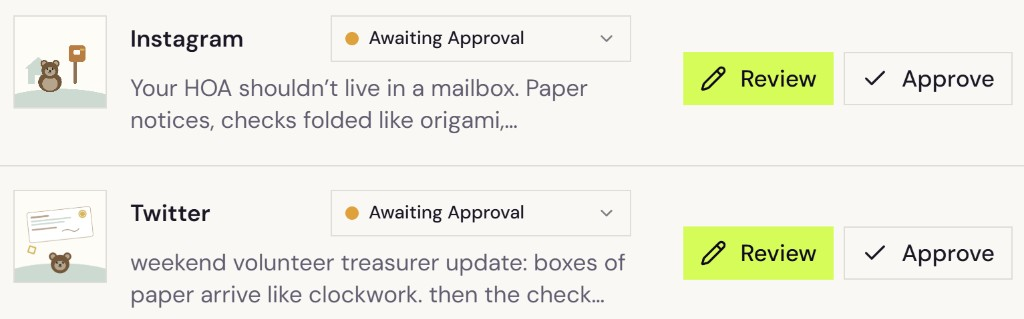
Where it works
ChatGPT
Available nowFind Mavlow in the ChatGPT plugin directory, connect, then draft and send from chat. Captions, images, and video can land in your Queue together. You stay in control of what gets published. Steps below.
Claude
Available nowFind Mavlow in the Claude Connectors Directory, connect, then draft and send from chat. Claude sends captions; attach photos in Mavlow Queue.
Canva
Import live · handoff soonImport now: connect Canva under Integrations to pull designs into your Mavlow media library, then attach them to Queue drafts.
Direct Send to Mavlow from Canva (design → Queue draft) is forthcoming — not the same as media import.
Gemini Spark · Grok
Custom connectSupported via a custom MCP URL (not a public directory listing). Steps further down for developers and beta testers.
What they can use
When connected, a supported host can use your:
- saved brand voice and business facts
- content preferences
- recent posts and drafts
- content calendar
- social channels connected in Mavlow
Finish the caption in the tool you already use, then send it to Mavlow. Attach photos and publish from your Queue when you're ready.
Permissions
Can
- Read your Mavlow brand profile and content preferences
- See the social channels connected to Mavlow
- Read recent posts, drafts, calendar, and schedule
- Create and update drafts
- Schedule posts on your Mavlow calendar
- Approve scheduled slots and publish when you ask
Cannot
- Connect or disconnect social accounts
- Change billing or your Mavlow subscription
Connect ChatGPT
Available now · directory listed
- Open the Mavlow ChatGPT plugin listing (or search Mavlow under Plugins / Apps).
- Connect / install Mavlow.
- Sign in to Mavlow, review permissions, pick your default workspace, then approve.
- In chat, ask ChatGPT to write with your Mavlow brand (include an image or video when you want media), then save or schedule it in Mavlow.
Prefer the directory listing. Fallback: ChatGPT Developer Mode → add https://mcp.mavlow.com/mcp. During connect you may briefly see a supabase.co sign-in prompt — that's Mavlow Auth (see below).
Connect Claude
Available now · directory listed
- In Claude, open Customize → Connectors (or Discover).
- Find Mavlow and connect — listed in the Claude Connectors Directory.
- Sign in to Mavlow, review permissions, pick your default workspace, then approve.
- Ask Claude to save the caption as a Mavlow draft, schedule it, or check your Mavlow calendar.
Prefer the directory listing. Custom connector fallback: name Mavlow, URL https://mcp.mavlow.com/mcp, keep Sign in now + Register automatically.
Connect Claude Code
- Run
claude mcp add --transport http mavlow https://mcp.mavlow.com/mcp - In Claude Code, run
/mcp, select Mavlow, and complete Mavlow sign-in + workspace consent. - Say Send to Mavlow when the caption is ready.
Connect Gemini Spark
- On a computer, open gemini.google.com signed into a personal Google Account with Gemini Spark access.
- Open Settings & help → Connected Apps. Under Custom apps for Spark, choose Add a custom app.
- Paste
https://mcp.mavlow.com/mcp, then continue. Sign in to Mavlow, review permissions, pick your default workspace, and approve. - In Spark, use @Mavlow or say Send to Mavlow when the caption is ready.
Gemini Spark (Beta). Custom apps currently require a personal Google Account, age 18+, U.S. availability, Keep Activity on, and English. Not the same as searching for Mavlow in free Gemini chat — there is no Gemini directory listing yet.
Connect Gemini CLI
- Install Gemini CLI, then run
gemini extensions install https://github.com/kbgamble/mavlow-gemini - Start Gemini CLI and confirm
/extensions listshows mavlow. - On first use (or
/mcp auth mavlow), sign in to Mavlow, review permissions, pick your default workspace, then approve. - Say Send to Mavlow when the caption is ready.
Developer path. Prefer Gemini Spark above if you use gemini.google.com.
Connect Grok
- On a computer, open grok.com/connectors.
- Click New Connector, then Custom.
- Name:
Mavlow. Server URL:https://mcp.mavlow.com/mcp(the MCP endpoint — not an authorize URL). - Complete Mavlow sign-in, review permissions, pick your default workspace, then approve.
- In Grok chat, say Send to Mavlow when the caption is ready.
Custom MCP connector — not a Grok catalog listing yet. On Grok Business / Enterprise, a team admin may need to add the server under console.x.ai → Connectors first. Revoke under Grok connectors and/or Mavlow Integrations → Send to Mavlow.
Connect Claude API
Use the Messages API MCP connector with https://mcp.mavlow.com/mcp. Complete Mavlow OAuth consent first (same flow as Claude connectors), then pass the access token as authorization_token on the mavlow MCP server entry and enable the mcp_toolset. Refresh the token as needed.
If media doesn't transfer
If ChatGPT can't send an image or video with the draft, the caption is not saved either — retry the send, or save the caption alone and attach the file in Mavlow Queue. Approval, schedule, and publish always stay in Mavlow.
About sign-in (Supabase Auth)
Mavlow uses Supabase Auth as our OAuth provider for ChatGPT and other AI hosts. When you connect, you may briefly see a supabase.co sign-in prompt — that is expected and safe. You're signing into Mavlow; consent and workspace approval still happen on mavlow.com. We do not run a separate OAuth server.
Disconnect
Inspect or revoke connections anytime under Integrations → Send to Mavlow while signed in. Disconnecting blocks new access immediately.
Privacy
Brand context and drafts stay in your Mavlow workspace. See the Privacy Policy. This page does not start checkout — create a free Mavlow account on the website first if you need one.
No card · first 3 posts free · then $29/mo